Invoices
Invoices Overview
Invoices allow you to bill customers and receive payments. You have two options:
- Stripe Invoice — Powered by Stripe Connect. Sends a payment link to the customer for online payment. Requires Stripe Connect setup in Company Settings.
- Offline Invoice — Creates an invoice locally without Stripe. Ideal for customers paying by cash, check, or bank transfer. No Stripe account or customer email required.
Both types go through a lifecycle: Draft → Open → Paid (or Void). You can print any invoice for physical records.
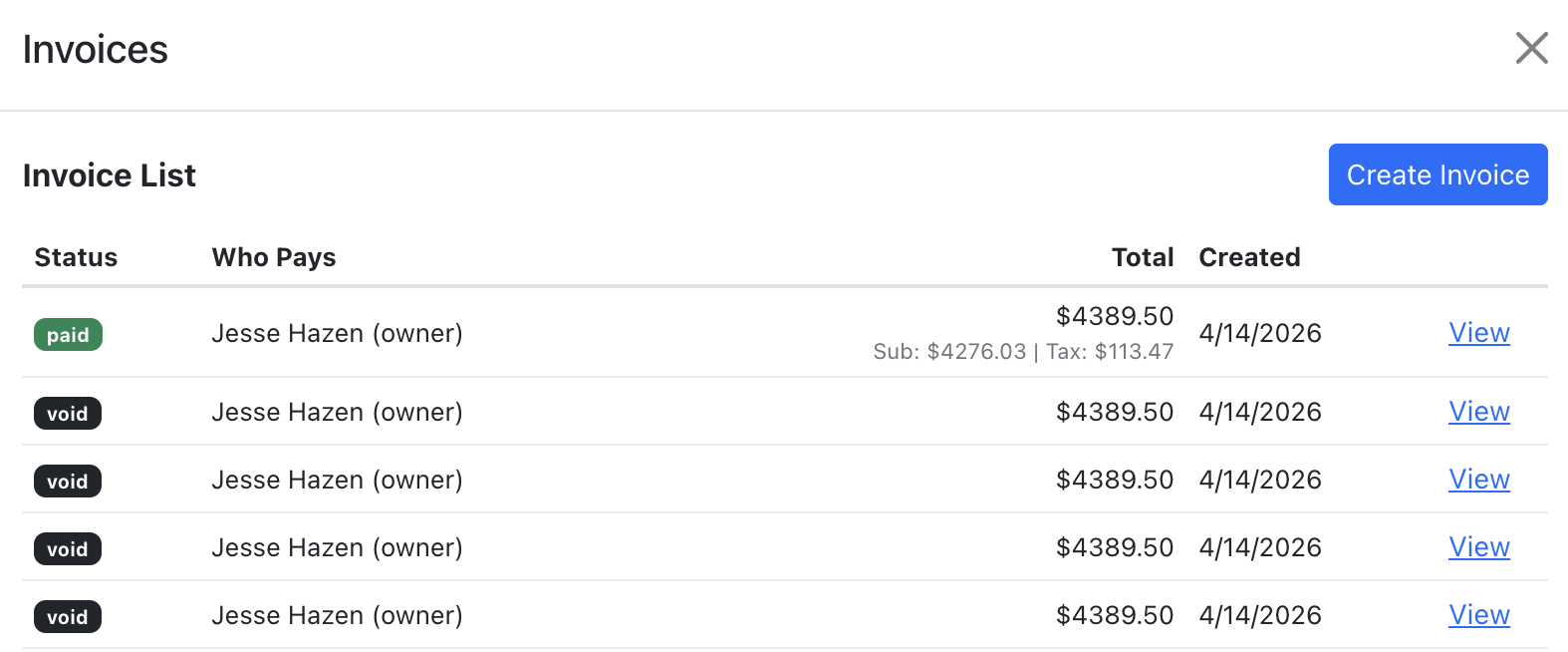
Create an Invoice (Stripe)
- Open a job and go to the Line Items section.
- Click the "Invoices" button.
- Click "Create Invoice" (requires Stripe Connect to be set up).
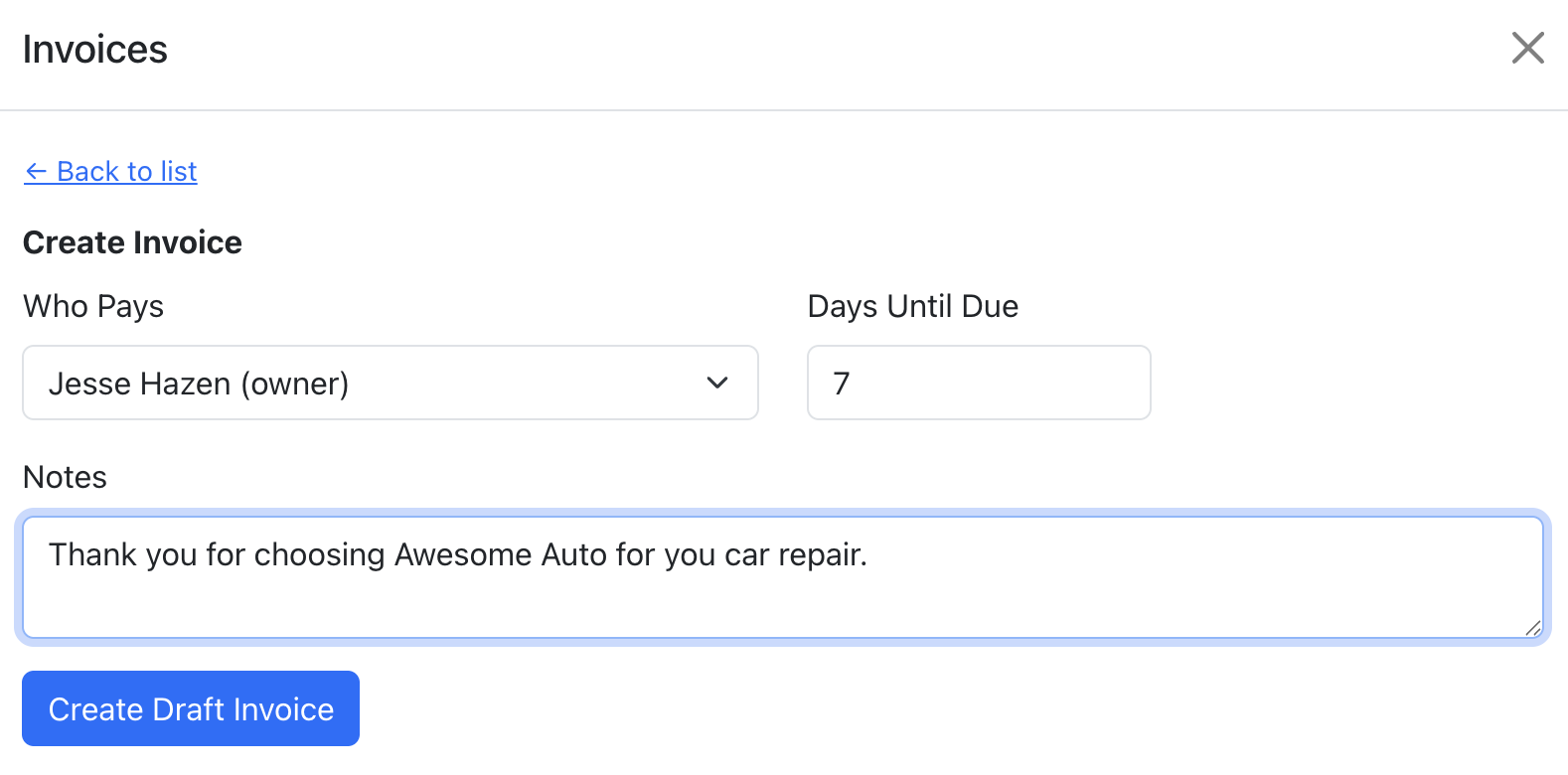
- Select who pays from the dropdown.
- Set the days until due (default 30).
- Optionally add notes.
- Click "Create Draft Invoice". The system auto-generates line items from the job's line items matching the selected contact, including tax and material charges.
Prerequisite: You must set up Stripe Connect in Company Settings before creating Stripe invoices. See the Stripe Connect setup guide.
Create an Offline Invoice
Offline invoices don't require Stripe Connect or a customer email. Use them for walk-in customers, check payments, or any situation where online payment isn't needed.
- Open a job and go to the Line Items section.
- Click the "Invoices" button.
- Click "Create Offline Invoice" (always available, no Stripe required).
- Select who pays from the dropdown.
- Set the days until due (default 30).
- Optionally add notes.
- Click "Create Offline Invoice". The invoice is created with status "Open" and line items are calculated locally using your tax rate and material charge settings.
Offline invoices can be printed, marked as paid, or voided — just like Stripe invoices.
Send an Invoice
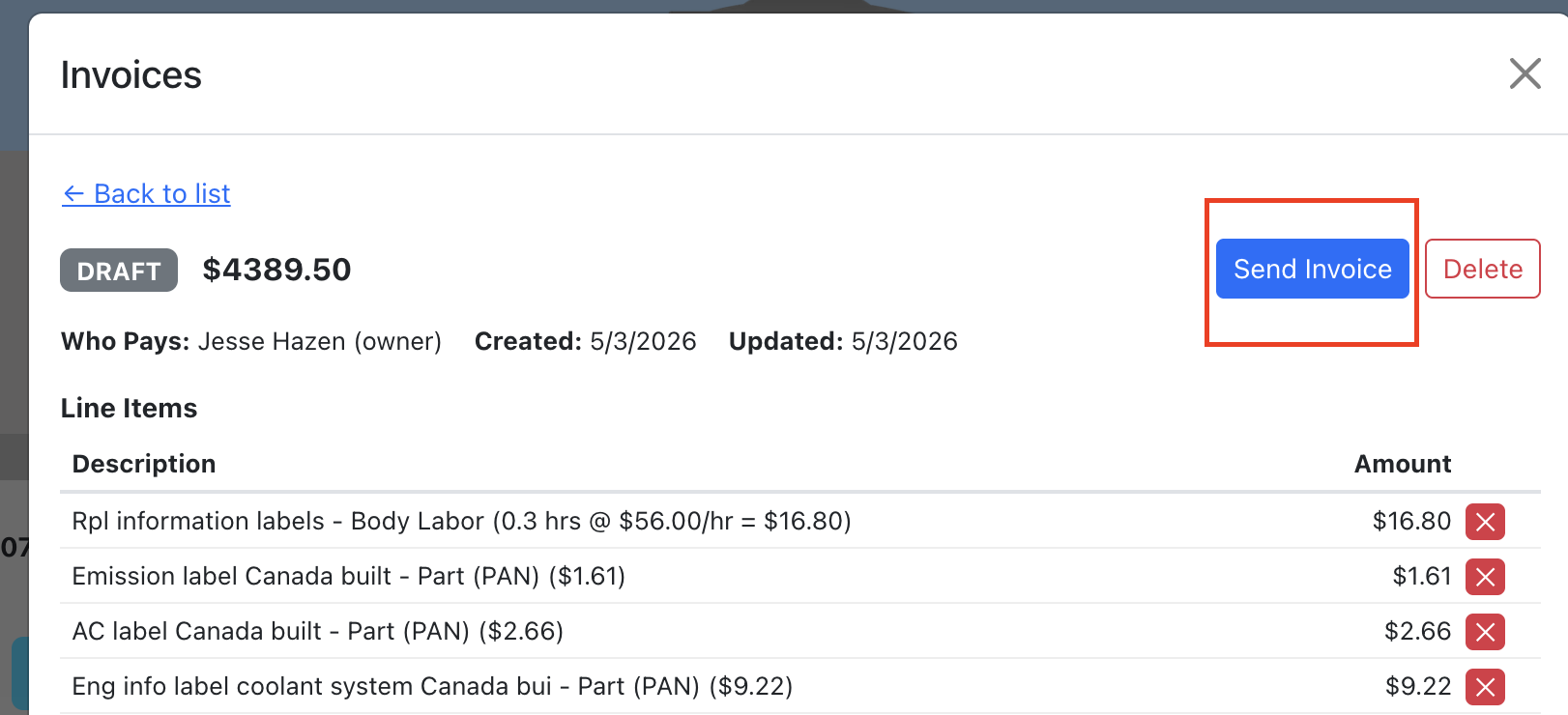
- Open the invoice detail view.
- Click "Send Invoice". This sends the invoice through Stripe to the customer's email.
- The customer receives a Stripe-hosted payment page where they can pay online.
You can also:
- Copy Payment Link — Copy the Stripe-hosted invoice URL to share manually.
- PDF — Open a PDF version of the invoice (Stripe invoices only).
Mark as Paid
When a customer pays outside of Stripe (cash, check, bank transfer, etc.), you can manually mark the invoice as paid.
- Open the invoice detail view.
- Click "Mark as Paid" (available on open invoices).
- Select the payment method: Cash, Check, Bank Transfer, or Other.
- Optionally add payment notes (e.g. check number, reference).
- Click "Confirm Paid".
The invoice status changes to "Paid" and the payment method is recorded for your records. If the invoice was also in Stripe, it will be marked as paid there too (out-of-band).
Print Invoice
You can print any invoice to hand to a customer or keep for your records.
- Open the invoice detail view.
- Click the "Print" button.
- A print-friendly invoice page opens in a new tab showing company info, customer details, vehicle info, line items, and totals.
- Click "Print Invoice" or use your browser's print dialog (Ctrl+P / Cmd+P).
- You can also "Save as PDF" from the print dialog to create a PDF file.
The printed invoice includes: your shop logo (if uploaded), company name and address, invoice number, dates, RO number, vehicle info, VIN, itemized line items with amounts, tax breakdown, and total due. See Company Settings → Shop Logo for logo upload instructions.
Manage Invoices
- Finalize — For offline draft invoices, click "Finalize" to move the invoice to "Open" status, indicating it's ready for payment collection.
- Mark as Paid — For open invoices, record an offline payment with the payment method and optional notes.
- Print — Print any invoice (any status) for physical records or to hand to the customer.
- Void/Delete — Draft invoices can be deleted. Open invoices can be voided. Voiding releases the line items so they can be re-invoiced.
- Filter Line Items — In the main line items table, use the Invoices column filter to show only line items by invoice status (paid, open, draft).
Refunds
Issue refunds against paid invoices when a customer needs money back — whether due to a part return, overcharge, or any other reason. The system tracks the refundable balance and prevents over-refunding.
Issue a Refund
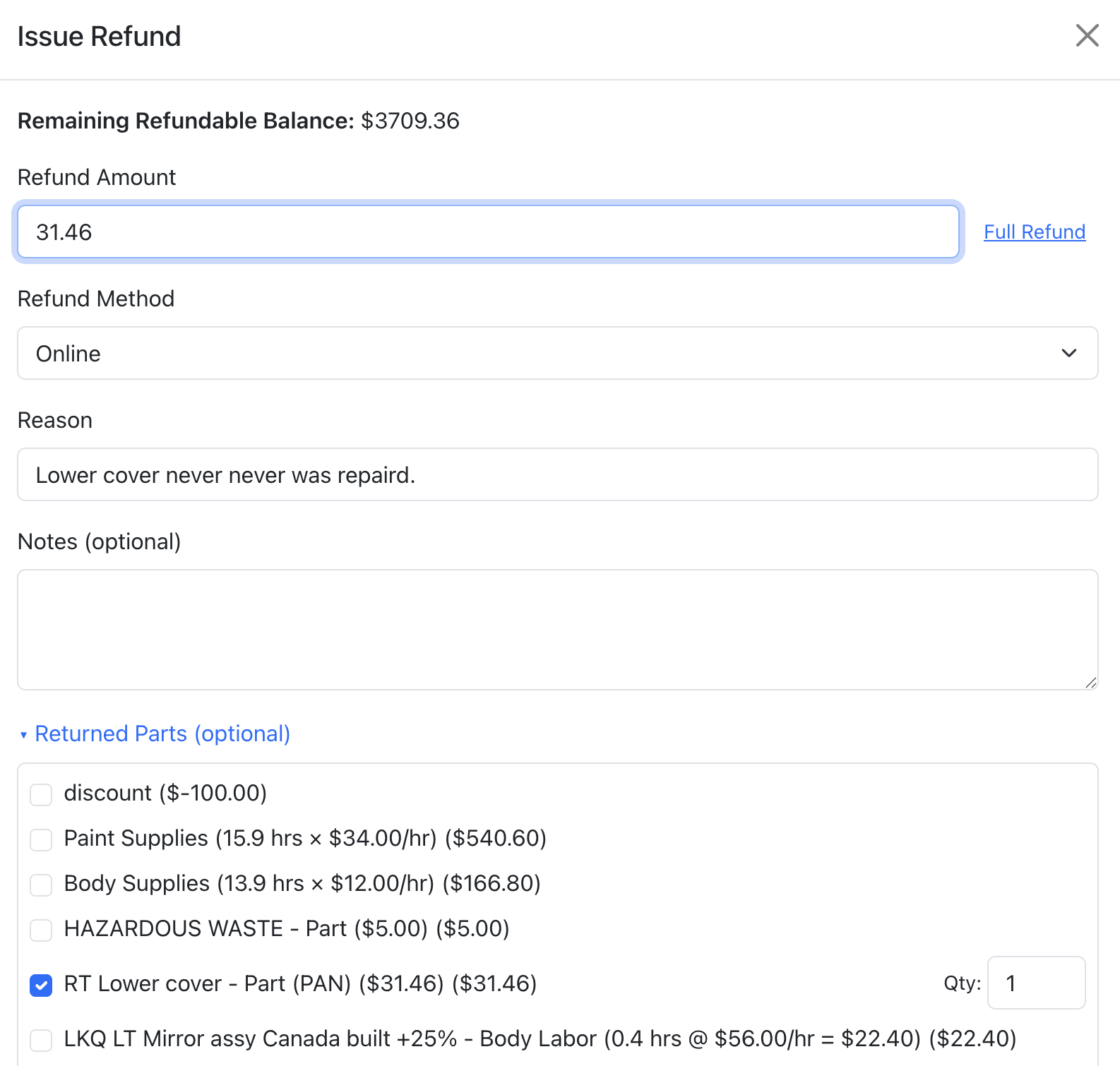
- Open the invoice you want to refund.
- Click "Issue Refund".
- Enter the refund amount, or click "Full Refund" to fill in the remaining balance.
- Select the refund method:
- Card — Refund back to the original card (available only if the invoice was paid via Stripe).
- Online — Refund to the customer's online payment method (available only if paid via Stripe).
- Cash — Record a cash refund.
- Check — Record a check refund.
- Other — Any other method (you can add details describing it).
- Enter a reason for the refund (required).
- Optionally add notes for internal records.
- Optionally select returned parts associated with this refund — check the parts and set quantities.
- Click "Submit Refund".
Refund Statuses
- Pending — Refund has been submitted but not yet processed.
- Processed — Refund has been successfully completed.
- Failed — Refund could not be processed (e.g. card declined).
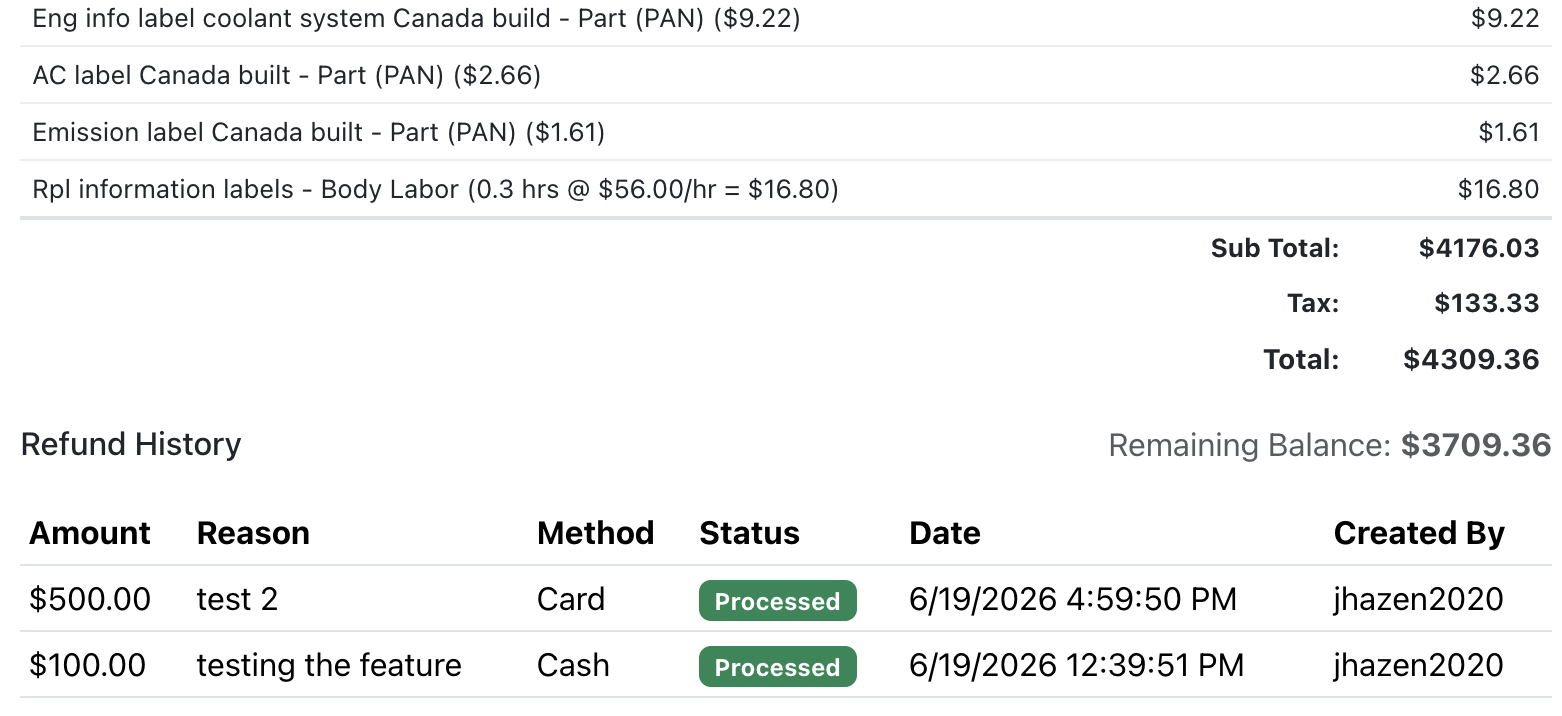
Refund History
View all refunds for an invoice in the refund history panel. Each entry shows the amount, method, reason, status, any returned parts, and when it was processed. The remaining refundable balance is displayed at the top so you always know how much can still be refunded.
Important Notes
- You cannot refund more than the remaining balance on an invoice (total minus previous refunds).
- Card and Online methods are only available if the invoice was paid through Stripe (a payment intent exists).
- Multiple partial refunds can be issued against the same invoice.
- Refunds with returned parts create a record linking the refund to specific parts for traceability.
Credit Lines (Negative Lines)
When a part is returned after being invoiced, you can create a credit line — a negative line item that reduces the invoice total. This is an alternative to issuing a full refund when you want the credit applied to the next invoice instead.
How It Works
- Move the part to "Returned" status on the Parts Board.
- Set the return quantity on the part (the system applies a negative quantity).
- When the next invoice is generated, the returned part appears as a negative line item — its amount is subtracted from the invoice total.
When to Use Credit Lines vs. Refunds
| Scenario | Use |
|---|---|
| Customer wants money back now | Refund |
| Credit should apply to a future invoice | Credit Line (negative line) |
| Part returned before invoicing | Credit Line — it will reduce the first invoice that includes it |
| Part returned after invoice is already paid | Refund (or credit line on supplemental invoice) |
Credit lines are automatically included in invoice calculations. They show as negative amounts in the line items breakdown, clearly indicating the credit to the customer.
