Time Clock & Reports
General Clock In/Out
Overview: The general time clock is available in the top navigation bar. It tracks when an employee starts and ends their workday.
- Click the clock button in the top navigation bar.
- The button shows "Clock In" when not clocked in.
- After clocking in, it shows the time you clocked in and a green indicator.
- Click again and confirm to clock out. If you are punched into any jobs, those will also be punched out automatically.
Hovering over the clock button while punched into jobs shows which repair orders you're currently working on.

Job Punch In/Out
Overview: You can punch in and out of individual jobs to track time spent on specific repair orders. This is separate from the general clock.
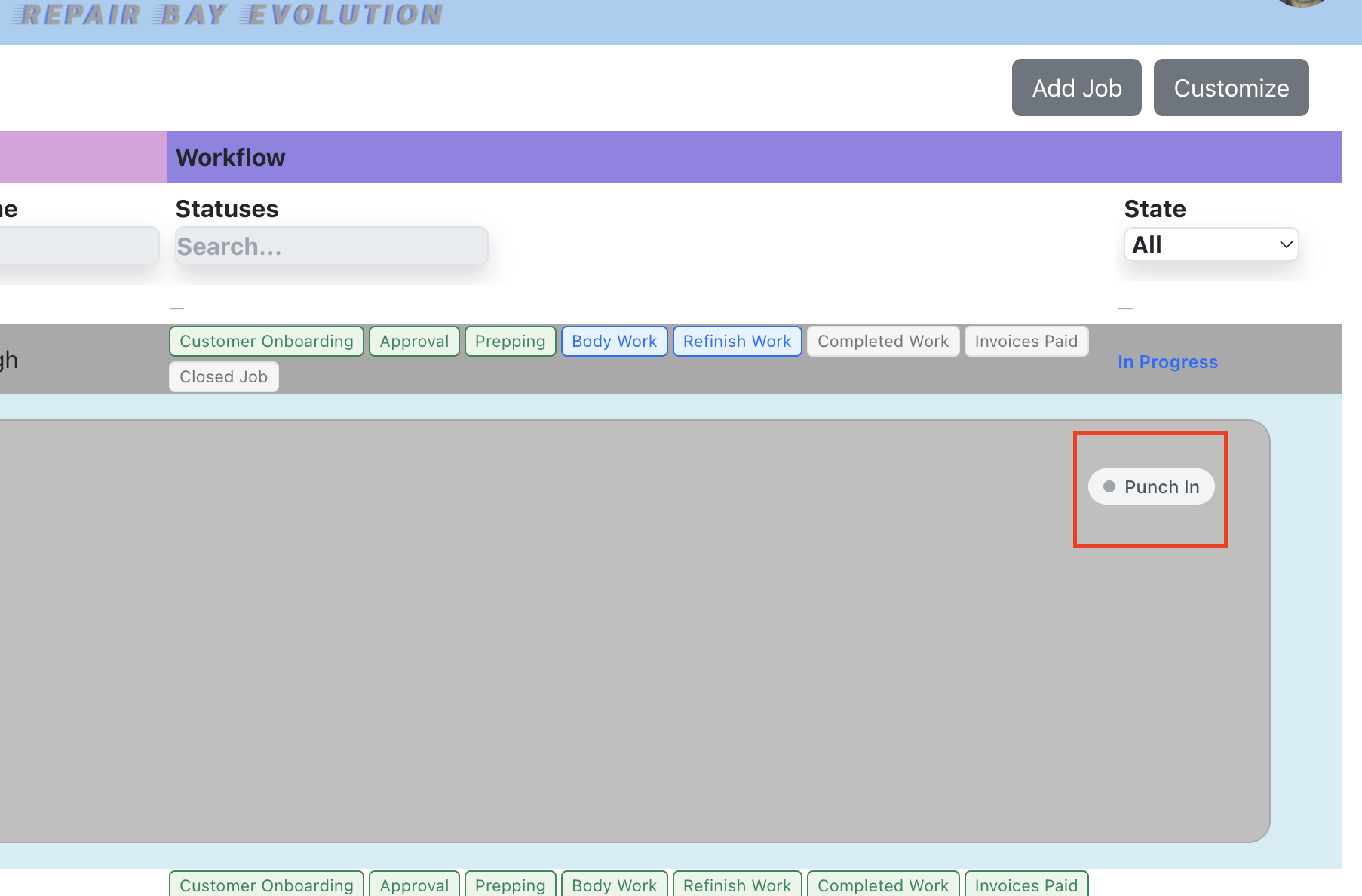
- In the jobs list, find the job you want to track time on.
- Click the "Punch In" button on the job row.
- The button turns green and shows the time you punched in.
- Click again and confirm to punch out of that job.
Time Clock Admin
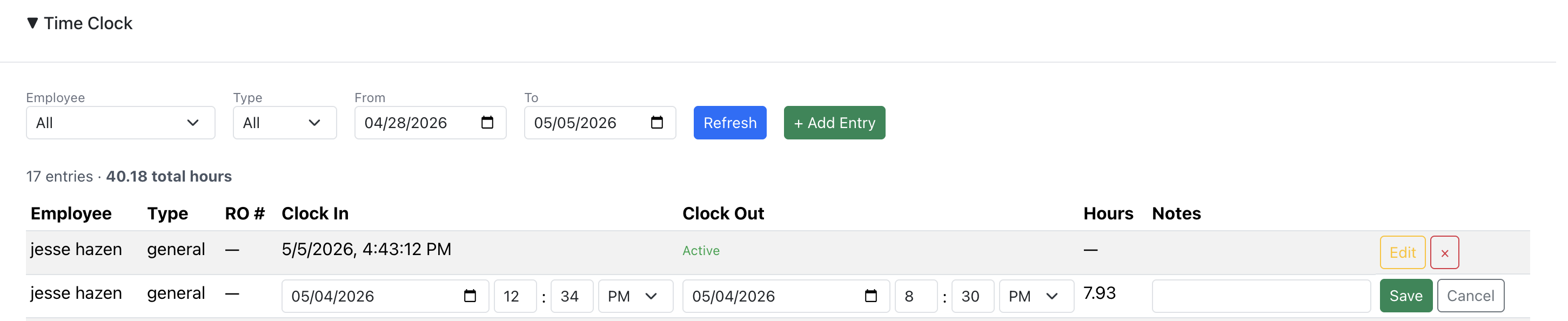
Overview: Admins can view, edit, add, and delete time entries for all employees. Access this from Company Settings → Time Clock.
- Go to Company Settings and expand the Time Clock section.
- Filter by employee, type (general or job), and date range.
- View total hours for the filtered entries.
- Click "Edit" on any entry to adjust clock in/out times and notes.
- Click "+ Add Entry" to manually create a time entry for an employee.
- Click "×" to delete an entry.
Estimates Report
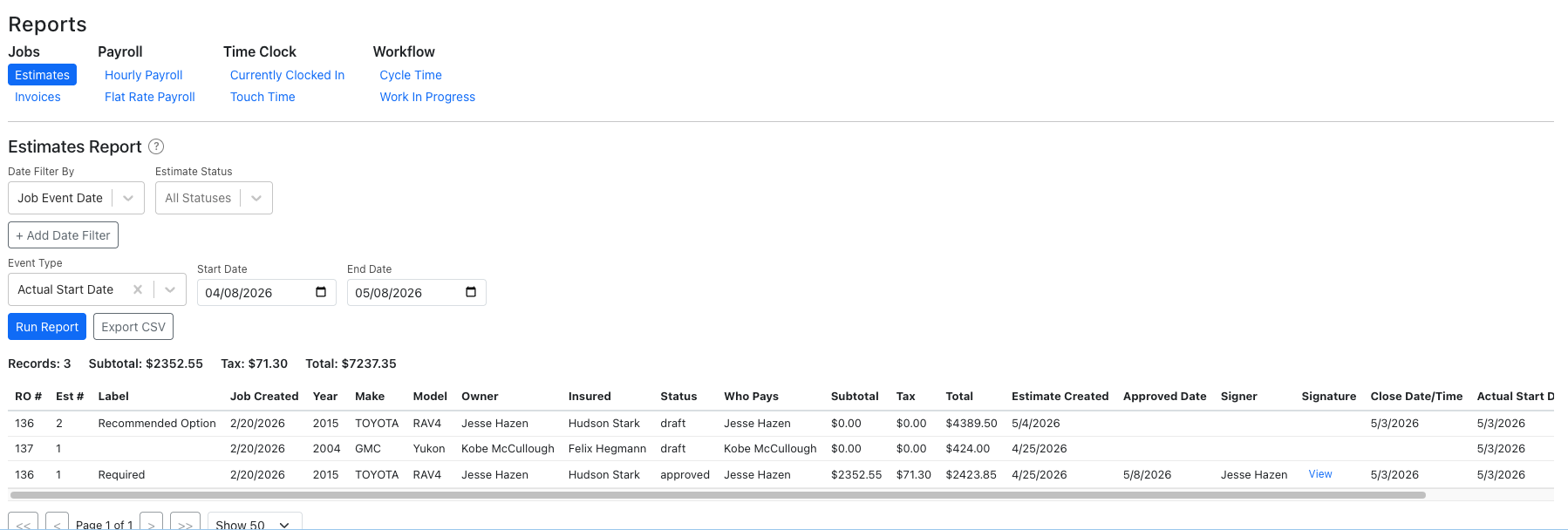
Overview: View all estimates across jobs. Each row represents one estimate. Filter by job event dates, approved date, or created date. Includes signature viewing and CSV export.
Running the Report
- Go to Reports and click "Estimates" under the Jobs category.
- Choose a Date Filter By mode:
- Job Event Date — filter by when specific job events occurred. Add multiple filters to narrow results.
- Approved Date — filter by when estimates were approved.
- Created Date — filter by when estimates were created.
- Optionally filter by Estimate Status (Draft, Sent, Approved, Declined).
- Click "Run Report".
Report Columns
- RO #, Estimate #, Label, Job Created, Year, Make, Model, Owner, Insured
- Status, Who Pays (person's name), Subtotal, Tax, Total
- Estimate Created, Approved Date, Signer name
- Signature — click "View" to open the approval signature in a modal
- Dynamic event date columns based on results
Summary & Export
- Summary bar shows record count, subtotal, tax, and total.
- Sort by any column, paginate results, and export to CSV.
Invoice Report
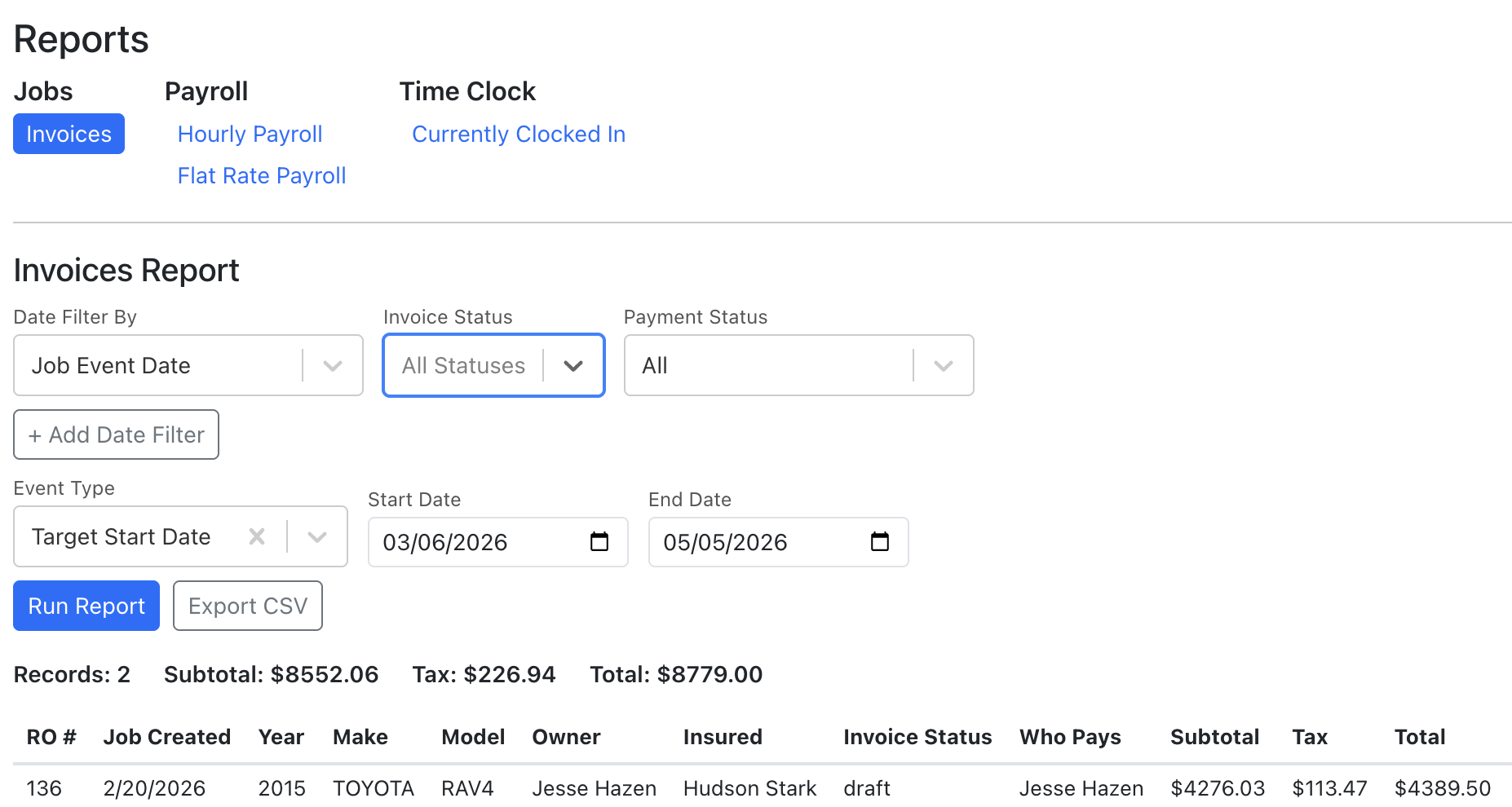
Overview: Generate reports on invoices across all jobs. Filter by date (using job events, paid date, or due date), invoice status, and payment status. Sort by any column and export to CSV.
Running the Report
- Go to Reports from the side menu.
- Click "Invoices" under the Jobs category.
- Choose a Date Filter By mode (see below).
- Optionally filter by Invoice Status (Draft, Open, Paid, Void) — you can select multiple.
- Optionally filter by Payment Status (All, Fully Paid, or Not Fully Paid).
- Click "Run Report".
Date Filter Modes
- Job Event Date — Filter by when specific job events occurred (e.g., "Vehicle Dropped Off" between two dates). You can add multiple event date filters to narrow results further.
- Paid Date — Filter by the date invoices were paid. Enter a start and end date.
- Due Date — Filter by invoice due date. Enter a start and end date.
Report Columns
The report displays the following columns:
- RO #, Job Created, Year, Make, Model, Owner, Insured
- Invoice Status, Who Pays
- Subtotal, Tax, Total, Amount Due, Amount Paid
- Invoice Date, Due Date, Finalized Date, Paid Date
- Dynamic event date columns (appear based on events present in the results)
Summary & Export
- A summary bar shows the total record count, subtotal, tax, and grand total for all matching rows.
- Click any column header to sort ascending or descending.
- Use the pagination controls at the bottom to navigate results (25, 50, or 100 rows per page).
- Click "Export CSV" to download all results as a CSV file.
Cycle Time Report
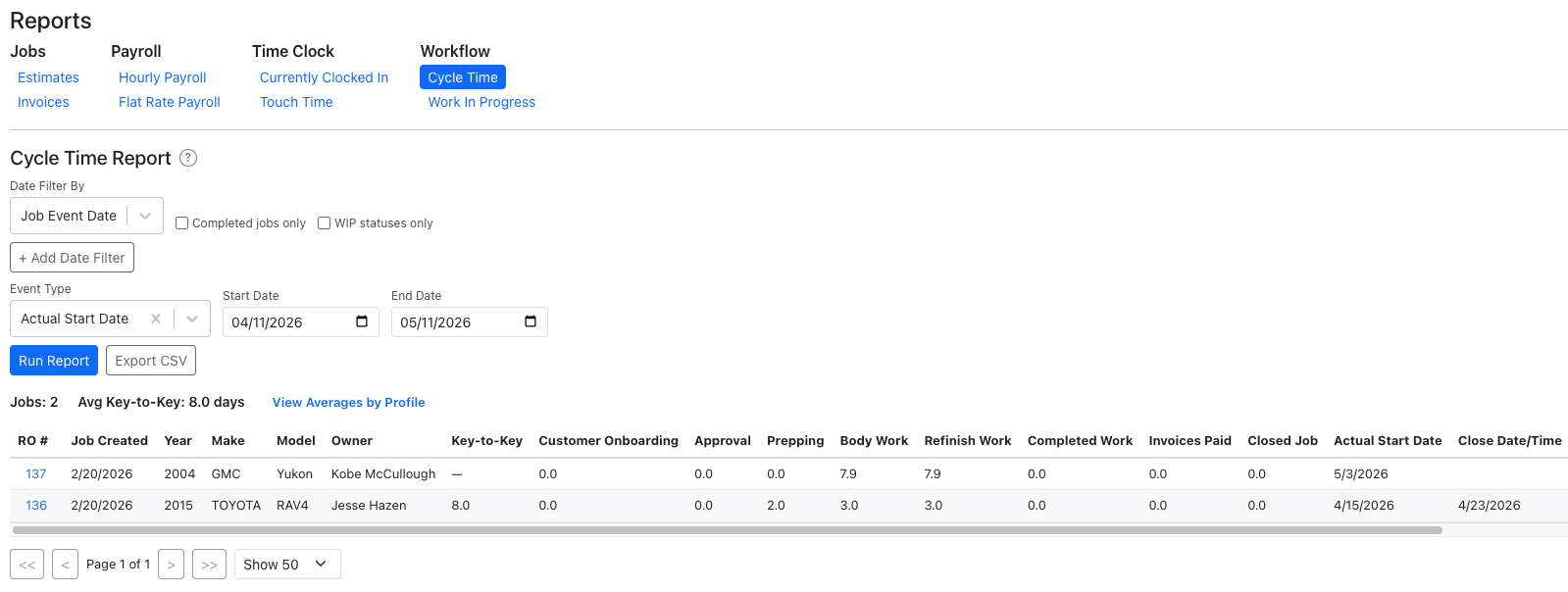
Overview: Measure how long jobs spend in each workflow step and the overall key-to-key time (arrival to pickup). Helps identify bottlenecks and track shop efficiency.
Running the Report
- Go to Reports and click "Cycle Time" under the Workflow category.
- Choose a Date Filter By mode:
- Arrival Date — filter by when vehicles arrived (shortcut for the "arrival" event).
- Pickup Date — filter by when vehicles were picked up.
- Job Event Date — filter by any event type with multiple date filters.
- Optionally check Completed jobs only to exclude jobs still in progress.
- Optionally check WIP statuses only to show only production steps in the columns.
- Click "Run Report".
How Cycle Time is Calculated
- Key-to-Key — elapsed days from the vehicle's arrival date to the actual pickup date (from repair events). Shows "—" if either date is missing.
- Status columns — time from when a status was moved to In Progress until it was marked Completed. Measured in days with 1 decimal precision.
- If a status is reset and restarted, both active periods are added together.
- Statuses marked Completed directly (skipping In Progress) show 0 days.
- Only SHOP audience statuses are shown, in the order configured in your workflow profile.
Additional Features
- View Averages by Profile — opens a modal showing average days per status, grouped by workflow profile, plus the overall key-to-key average.
- Click RO # — opens a detail modal showing the full workflow transition history for that job (who changed what, when).
- Click the ? icon next to the title for a quick reference of how calculations work.
Work In Progress Report
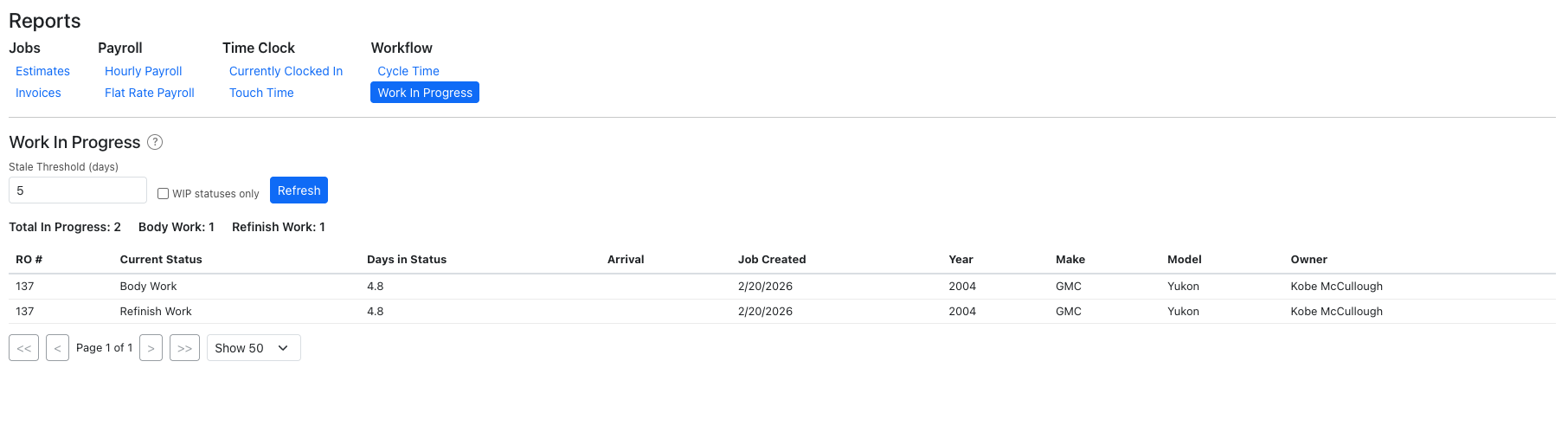
Overview: A live snapshot of all jobs currently in progress. Shows which workflow step each job is in and how long it's been there. Useful for daily standups and identifying stale jobs.
Using the Report
- Go to Reports and click "Work In Progress" under the Workflow category.
- The report loads automatically — no date range needed since it's a current snapshot.
- Set the Stale Threshold (default 5 days) — jobs exceeding this are highlighted in yellow.
- Toggle WIP statuses only to focus on production steps.
- Click Refresh to update the data.
What You See
- Each row is one active status on a job. A job can appear multiple times if it has multiple statuses in progress simultaneously (e.g., Body and Refinish).
- Days in Status — measured from when the status was last moved to In Progress.
- Summary bar shows the count of jobs in each status.
- Yellow highlighted rows indicate jobs that have exceeded the stale threshold.
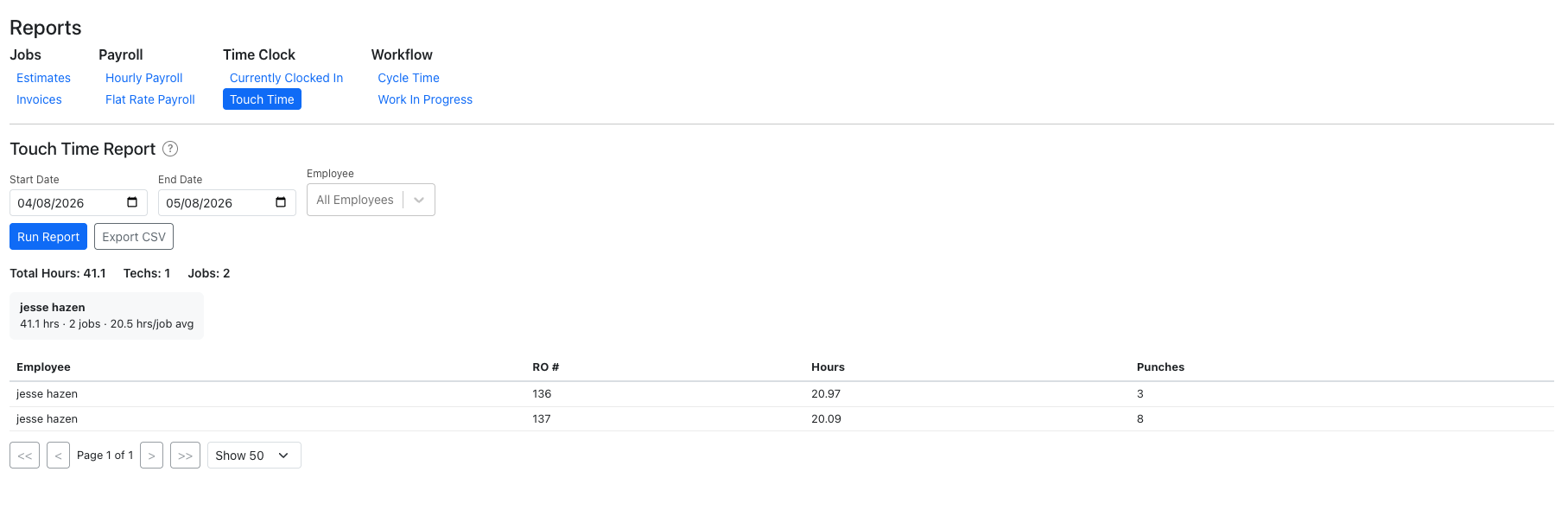
Touch Time Report
Overview: Shows actual time technicians spent on jobs based on clock-in/clock-out punches. Useful for workload visibility and comparing actual time vs. flat rate estimates.
Running the Report
- Go to Reports and click "Touch Time" under the Time Clock category.
- Select a date range.
- Optionally filter by Employee to focus on one tech.
- Click "Run Report".
What You See
- Each row is one employee + one job, showing total hours and number of punches for that combination.
- Summary cards at the top show per-tech totals: hours worked, jobs touched, and average hours per job.
- Only completed punches (with a clock-out) on a specific job are included.
- Export to CSV for payroll or analysis.
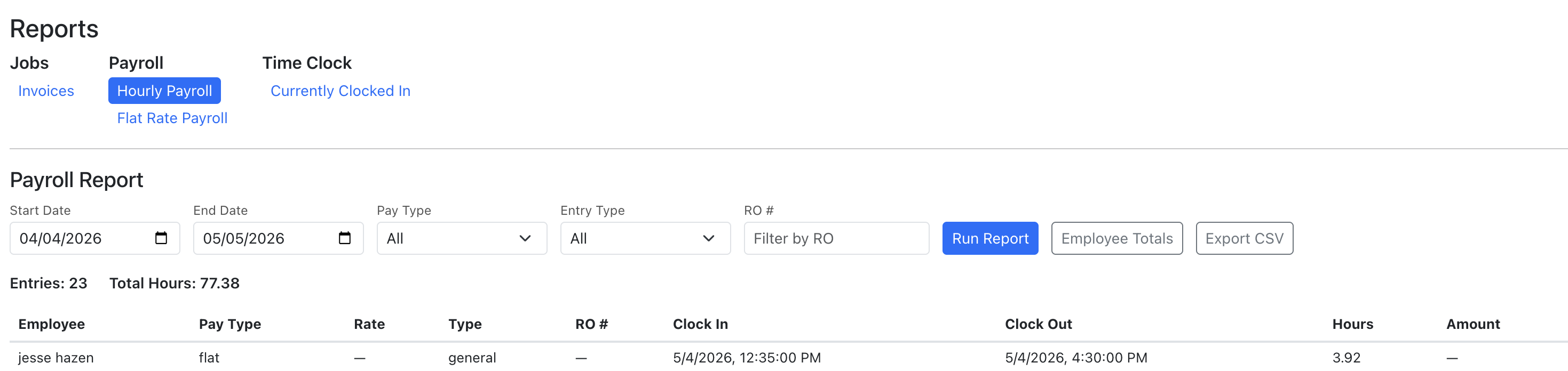
Hourly Payroll Report
Overview: View time clock hours by employee for a date range. Shows general and job-specific hours.
- Go to Reports and click "Hourly Payroll" under Payroll.
- Select a date range.
- Click "Run Report".
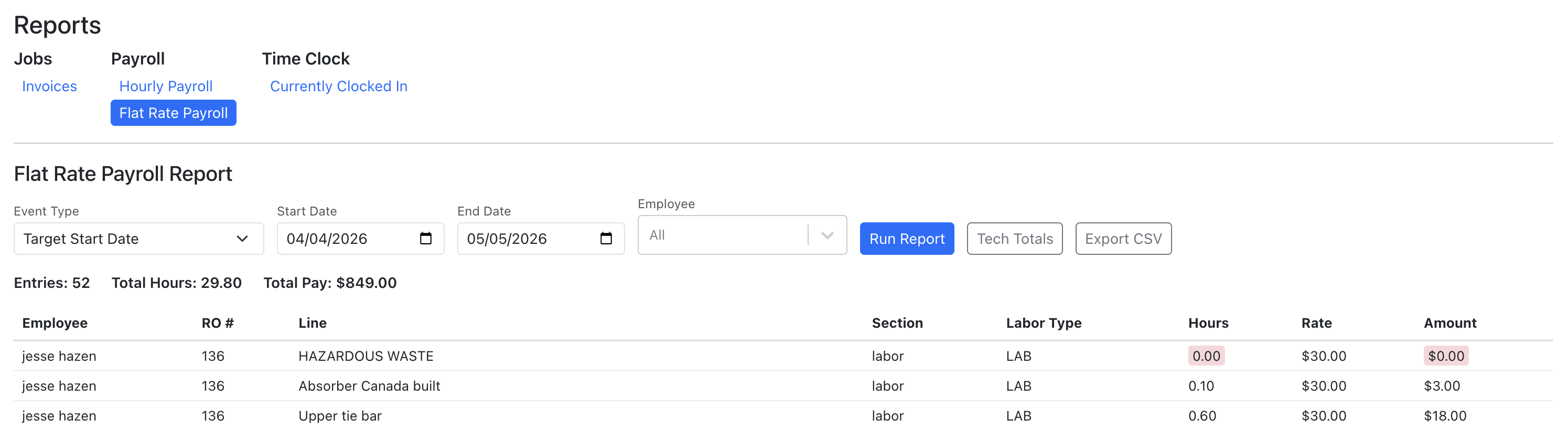
Flat Rate Payroll Report
Overview: View labor hours assigned to each technician across jobs for flat rate pay calculations.
- Go to Reports and click "Flat Rate Payroll" under Payroll.
- Select a date range.
- Click "Run Report".
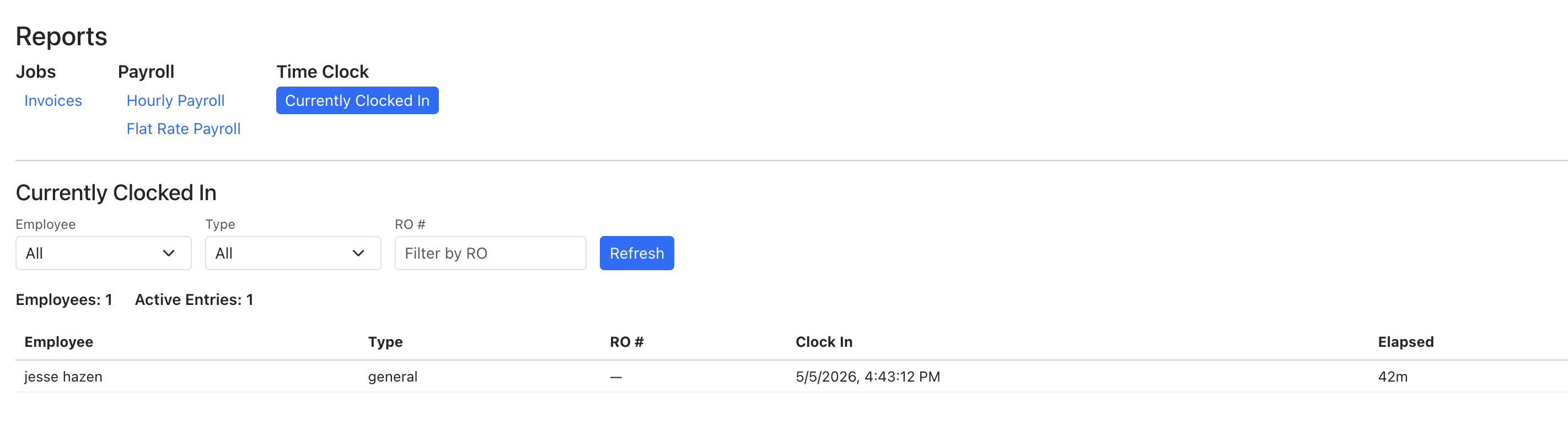
Currently Clocked In
Overview: See which employees are currently clocked in and what jobs they are punched into.
- Go to Reports and click "Currently Clocked In" under Time Clock.