Getting Started
Logging In
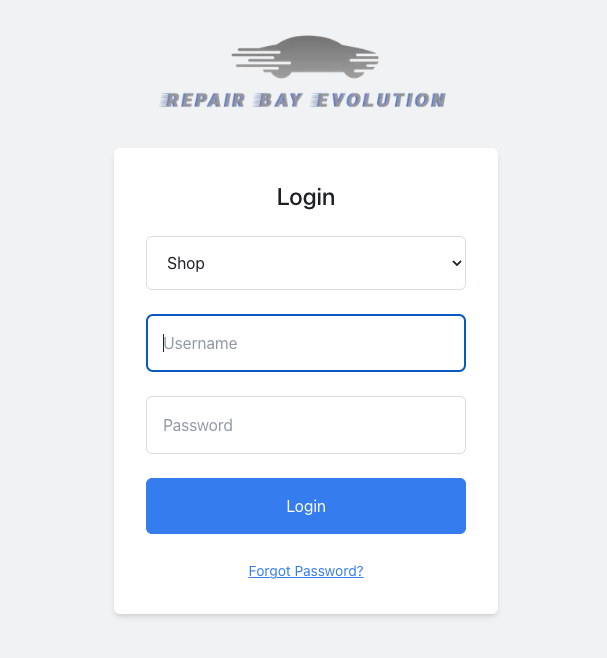
Overview: All participants go to the same login page to access their portals. There are 3 portals depending on whether the user works for an insurance company, works for an auto body shop, or is a customer. The username and password are retrieved from an email after being invited to the system.
- Click on the drop down box to select either (shop, insurance, or customer).
- Use your username and password.
Manage Employees
Overview: You can manage your shop's employees in the users settings page. You must be a user with Admin access. This person will be whoever signs up for the shop.
Add an Employee
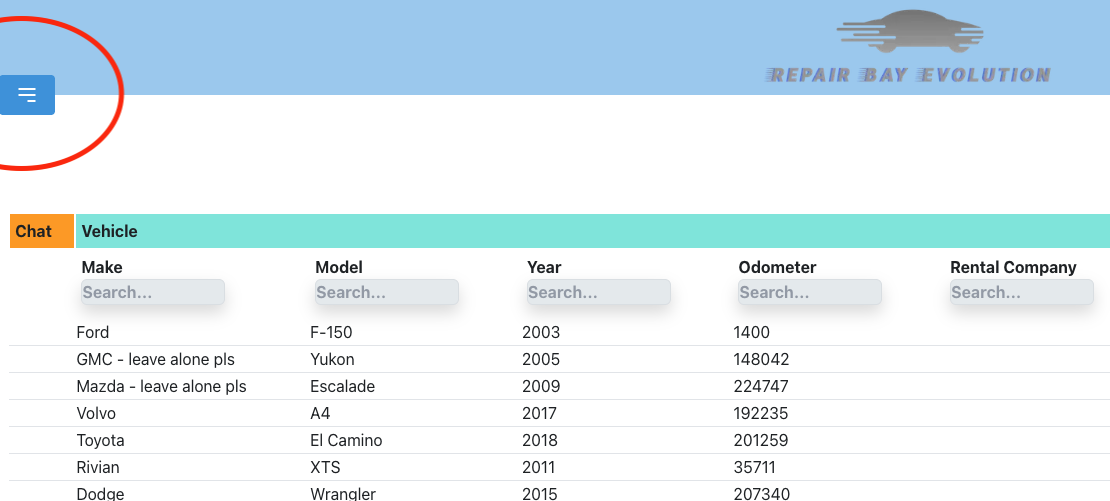
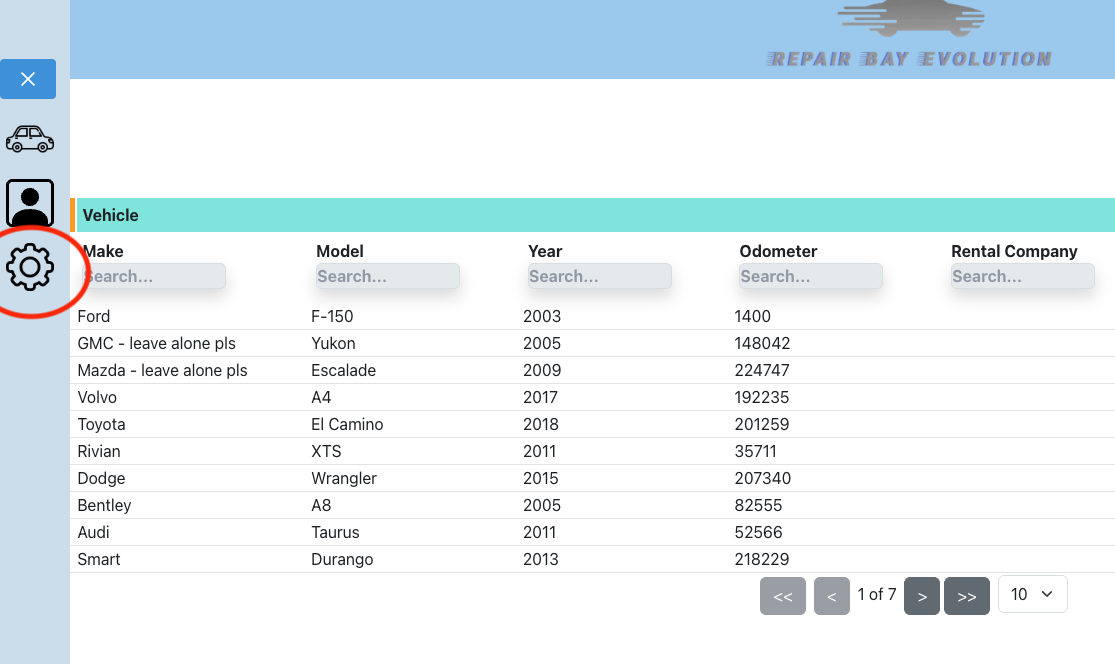
- Click on the menu button on the top left.
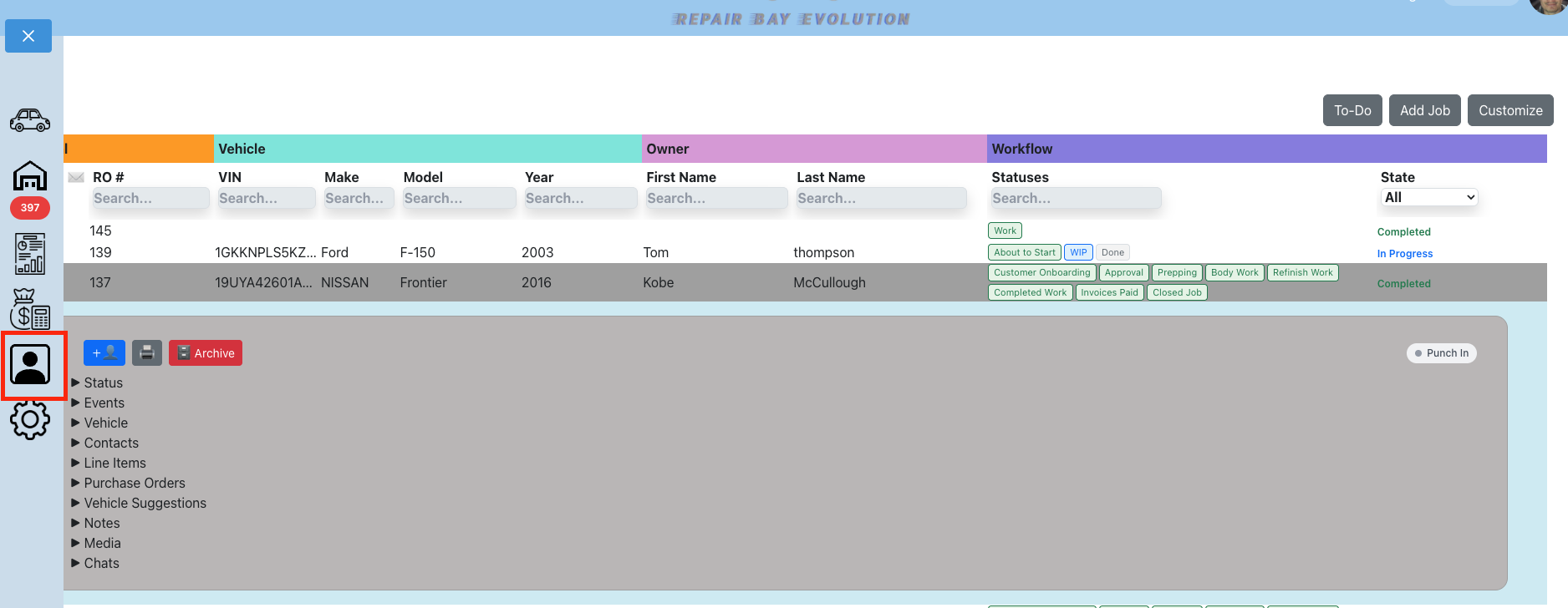
- Click on the users link.
- Click Add Employee.

- Enter the employee's email. This email can't be used by any other shop.
- Add a username for the employee (e.g. jsmith123). The username must be unique across the system.
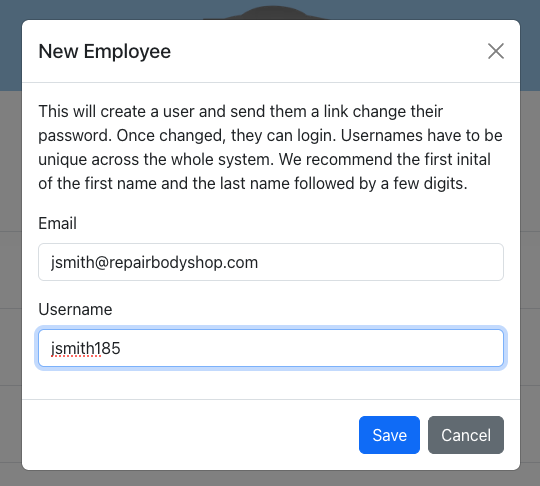
- Click save and refresh your browser.
- Now you can fill in the employee's personal information.
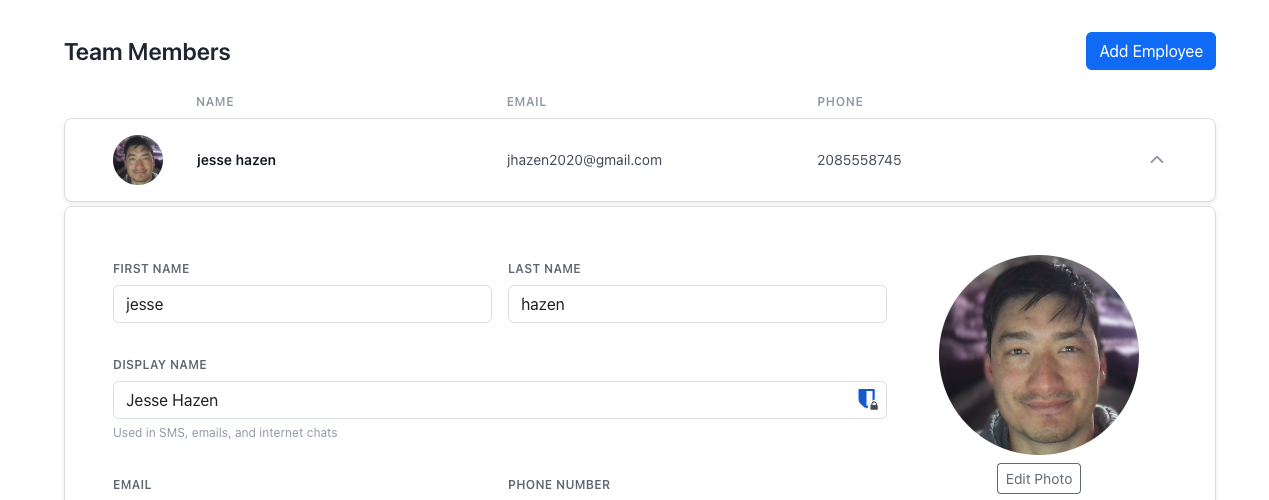
Employee Notification Settings
Each employee has two notification options in their profile:
- Push notifications for incoming SMS & Email — When enabled, the user receives real-time browser push notifications and in-app toast alerts whenever a new SMS or email arrives on any job in the company. This is a global alert and does not require being subscribed to a specific job.
- Notify on incoming SMS / Email on new jobs — When enabled, the user is automatically added to the "Notify on Incoming SMS / Email" subscriber list on every newly created job. This means the SMS and Email unread indicators in the jobs list will appear for this user on new jobs, and they will be pre-selected in the per-job notification dropdown under the Contacts section.
These settings are independent. Push notifications alert the user in real-time across all jobs, while the auto-notify setting controls which jobs show unread message indicators in the jobs list for that user.
Manage Subscription
Overview: You can start and stop your subscription at any time. Subscriptions renew monthly. You must be an admin to see this page. You will be redirected to a Stripe customer account — at no point will your payment information exist in Repair Bay Evolution.
- Click on the top left menu.
- Click on the manage company link.
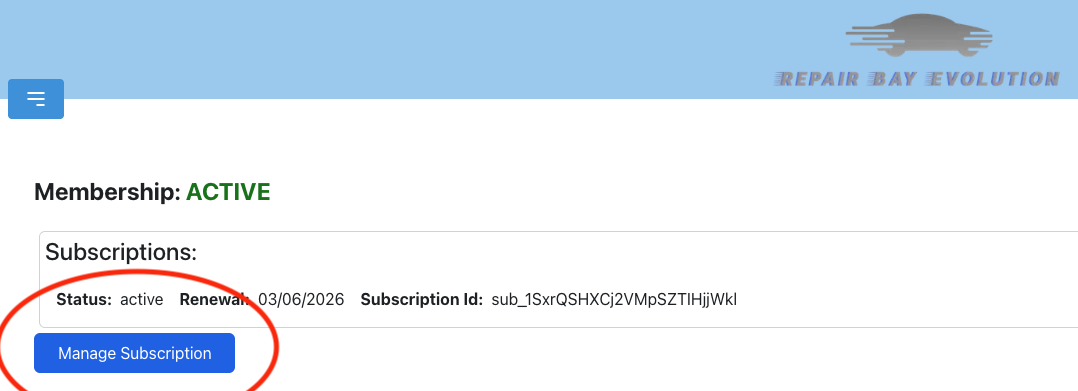
- Click on Manage Subscription.